
Live sensor monitoring
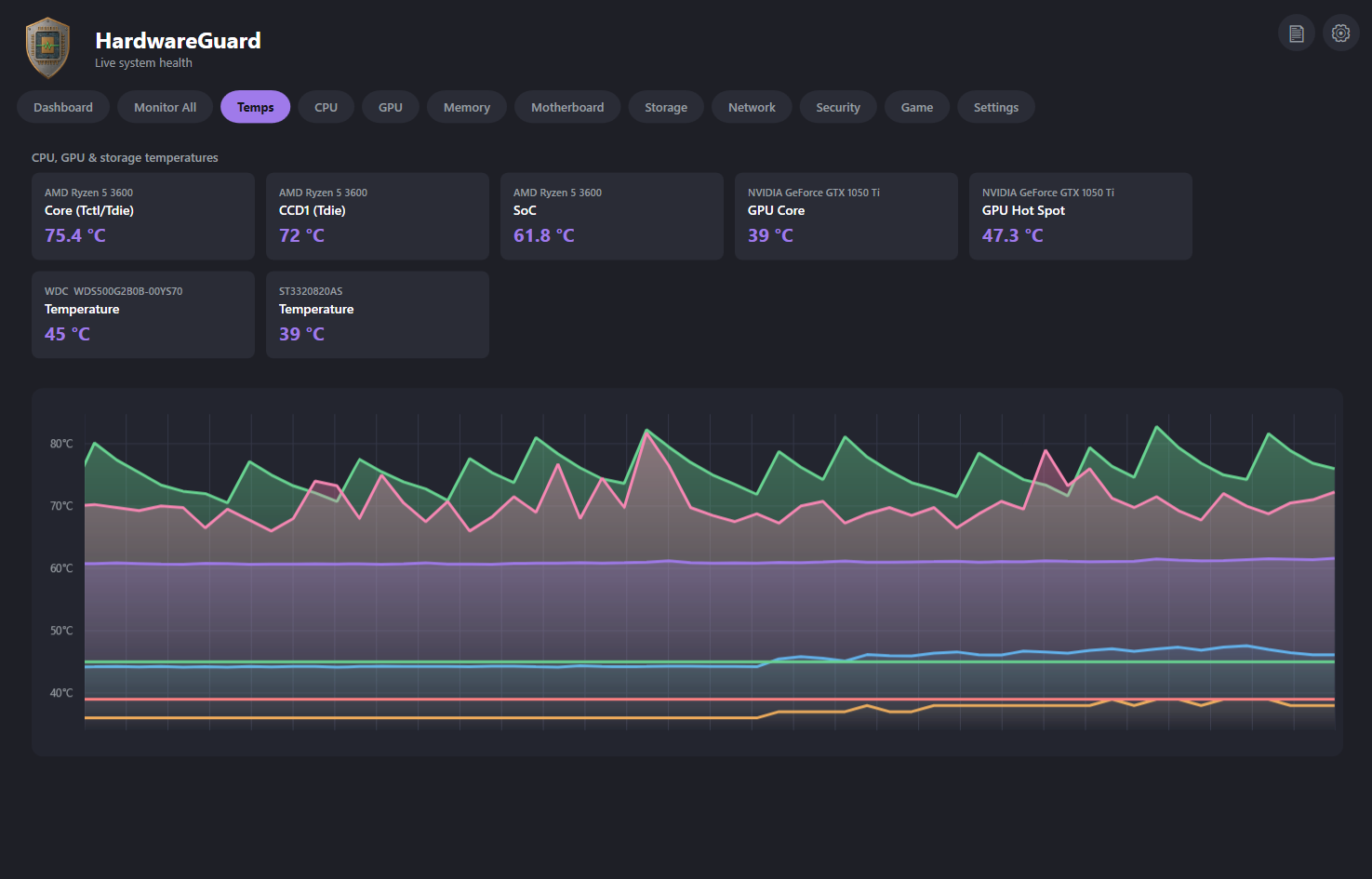
Temperatures, loads, clock speeds and fan speeds across your CPU, GPU, memory, motherboard, storage and network, each with its own tab and live charts.
 Hardware monitoring for Windows
HardwareGuard watches your CPU, GPU, memory, motherboard and drives in real time, remembers what they did, and shows you when something starts to drift from normal.
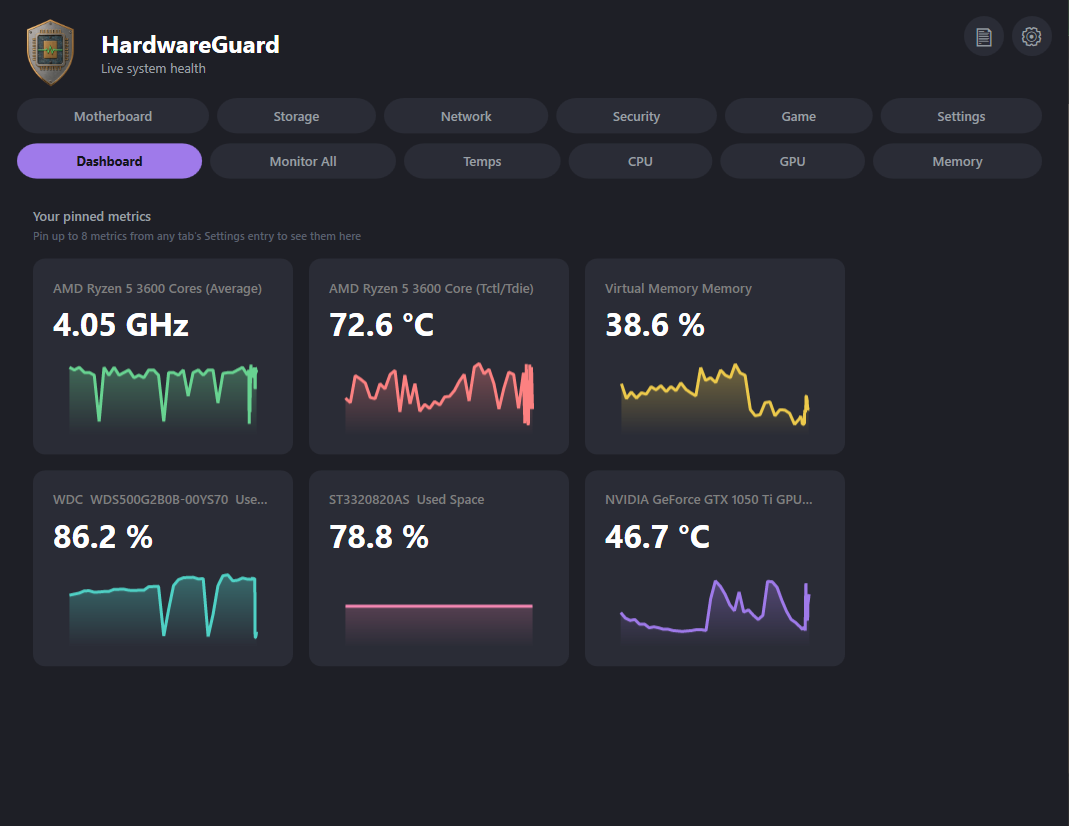
No digging through menus or juggling tools. Open HardwareGuard and see how your machine is really doing.
Temperatures, loads, clock speeds and fan speeds across your CPU, GPU, memory, motherboard, storage and network, each with its own tab and live charts.
HardwareGuard keeps recording in the background. Switch between Live, 1 minute, 5 minutes, 30 minutes, 1 hour, 24 hours, 7 days and 30 days.
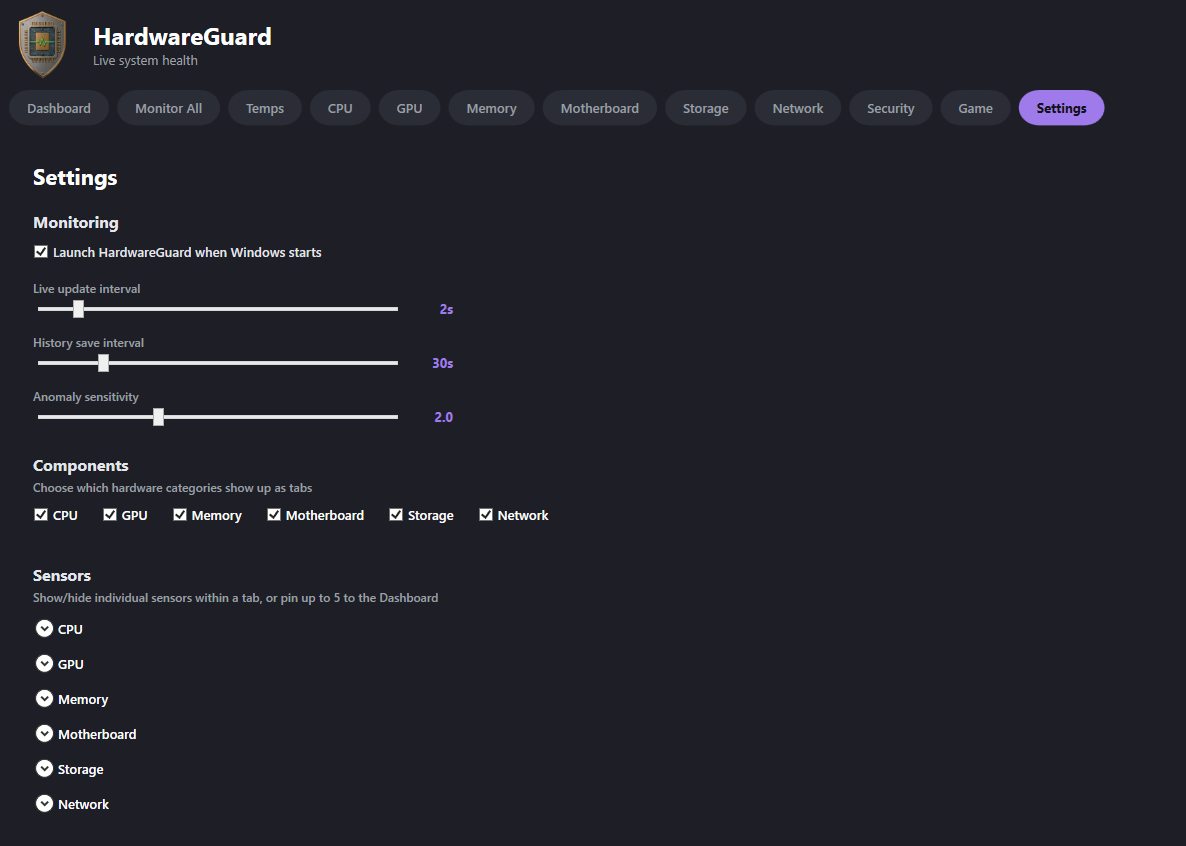
It learns what's normal for your machine and flags readings that stray from it. You choose how sensitive it should be.
A Game tab with live FPS, 1% lows, frame time and ping, plus an in-game overlay that keeps your key numbers on screen.
See Windows Defender's detections and running programs worth a second look. It's a heads-up, not a replacement for antivirus.
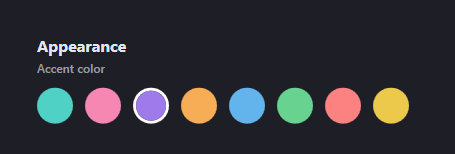
Pin your favourite metrics to the dashboard, choose which components and sensors to show, pick an accent colour, and start with Windows if you like.
Track how your games really run. Then keep the numbers that matter on screen without alt-tabbing.
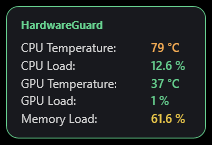
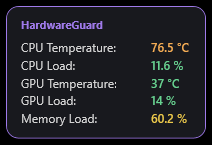
The overlay follows whichever accent colour you choose.
That's all. No account, no tracking, and your sensor history is never uploaded.
Your sensor history and settings are stored locally on your own machine. There's no login, no cloud and no analytics. You can read the details on the Privacy page.
Instant download after purchase. Taxes, where they apply, are shown at checkout.
Coming soonRead our refund policy, terms and privacy notice before you buy.
To read CPU temperatures and clocks, and drive health data, directly from your hardware. Without administrator access, Windows blocks those readings and many sensors would simply show nothing. Windows will ask for permission each time you open it.
Yes. HardwareGuard's installer isn't code-signed yet, so Windows may show "Windows protected your PC". If you downloaded it from this site, choose More info, then Run anyway. If you're unsure where a file came from, don't run it.
The overlay shows on top of windowed and borderless-windowed games. Games running in true exclusive fullscreen can hide it, because they take over the display. If the overlay disappears, switch the game to Borderless Windowed in its display settings.
Intel and AMD processors, and NVIDIA, AMD and Intel graphics, plus motherboards, drives and network adapters. What you see depends on what your hardware exposes, so some sensors may not appear on every PC.
No account and no tracking. Your history and settings stay on your PC. The app contacts the internet only to check for and download updates, and to ping 1.1.1.1 for the Game tab's ping reading. Full details are on the Privacy page.
HardwareGuard can check for updates automatically. You can turn that off in Settings and check by hand whenever you like.
No. It shows Windows Defender's detections and lists running programs that are worth a second look. Those are signals, not verdicts, so verify anything you don't recognise before acting. Keep using your normal antivirus.
Contact us and we'll try to fix it. If we can't, see the refund policy.